
Create Images with Seedream 5.0 Text to Image
Write what you want to see. Choose Pro or Lite, pick the image shape and size, and get one new image.
© 2026 Seedream. All Rights Reserved. Disclaimer: Seedream is an independent AI platform and is not affiliated with, endorsed by, or sponsored by ByteDance.
Turn a prompt into a Seedream 5.0 image
Start with words, not a photo. Describe the subject, setting, light, colors, and any text you want in the image.
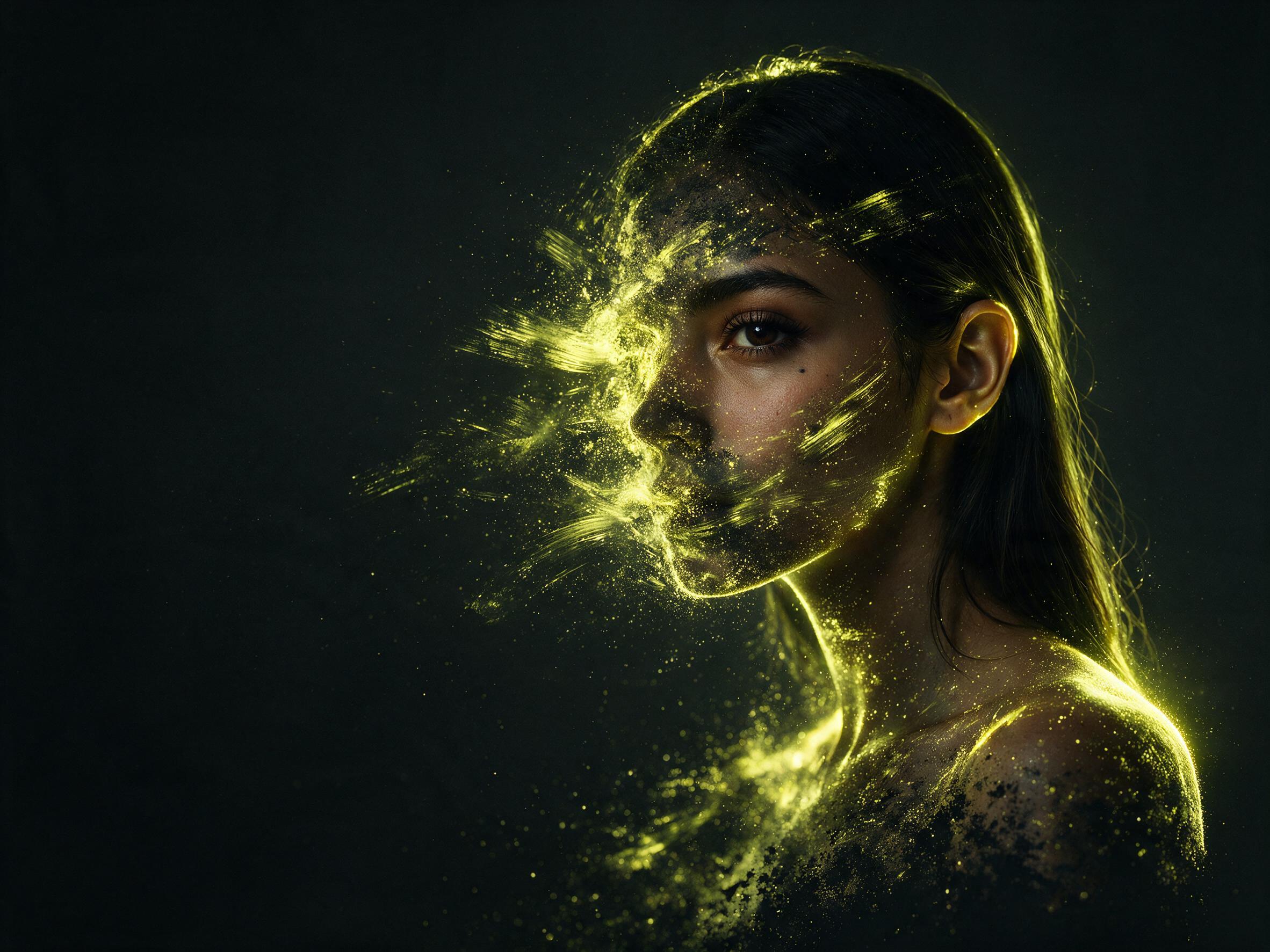
Make an image from text
Write a prompt in everyday words. This tool starts from your text, so you do not need to upload a photo.
Start with Pro
The page opens with Seedream 5 Pro selected. You can switch models before you generate.
Use Lite for a lower credit cost
Seedream 5 Lite uses fewer credits than Pro at the same 1K or 2K size. The cost appears before you run it.
Choose from seven image shapes
Pick 1:1, 16:9, 9:16, 4:3, 3:4, 3:2, or 2:3. Choose the shape that fits where the image will go.
Pick 1K or 2K
Pro and Lite both offer 1K and 2K. Set the size before you generate, then use the same prompt to try another size.
Download PNG or JPEG
Each Seedream 5.0 run gives you one image. Choose PNG or JPEG before you generate, then download the result.
How to make an image from text
Write a prompt, choose your settings, and generate. You can make another image by changing the prompt or settings.
Write your prompt
Name the main subject first. Then add the setting, colors, light, image style, and any words that should appear.
Choose the model, shape, and size
Pick Pro or Lite. Then choose an aspect ratio and set the output to 1K or 2K.
Generate and download
Check the credit cost, start the run, and download the PNG or JPEG. Edit the prompt if you want a new result.
Square, wide, and tall frames from one prompt idea.
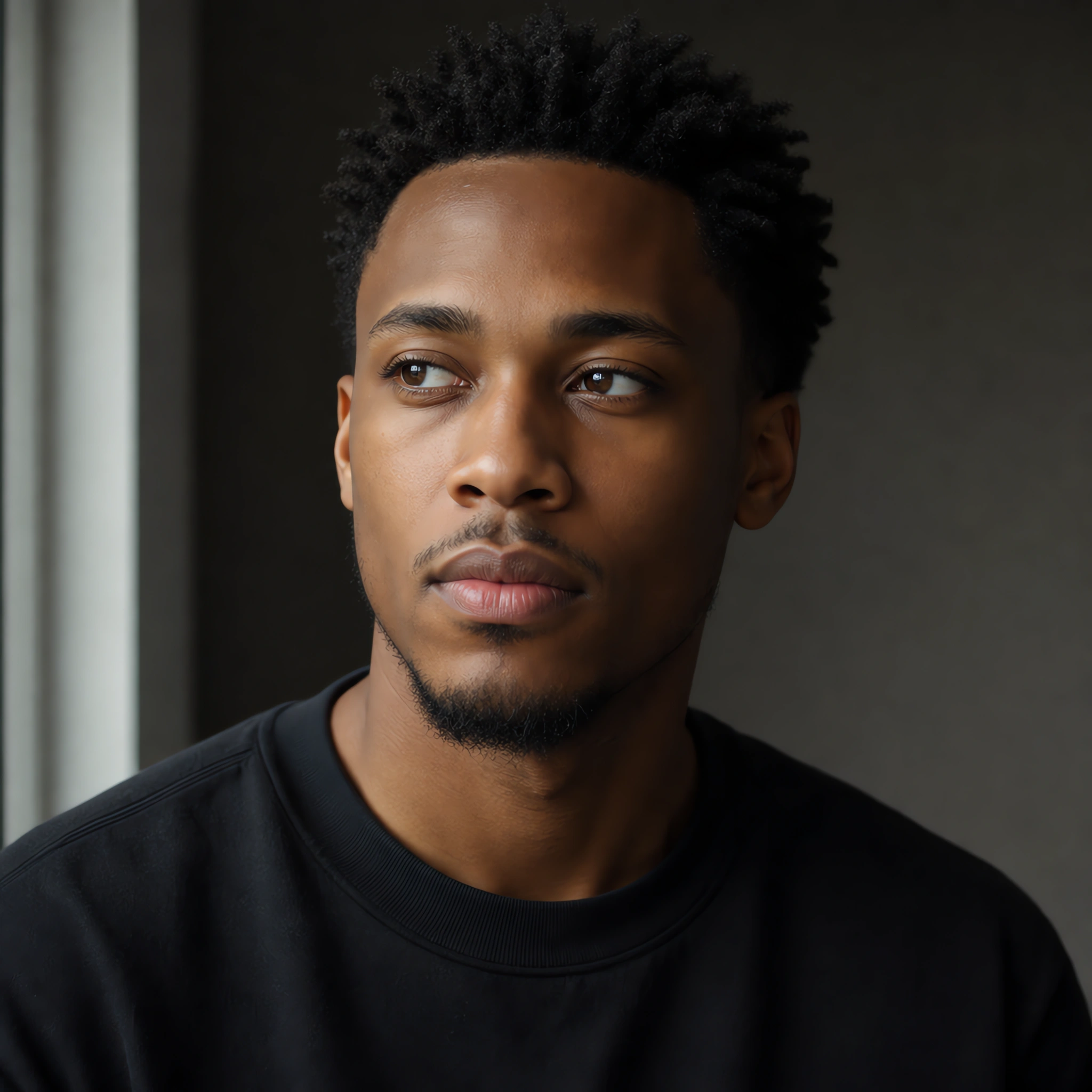
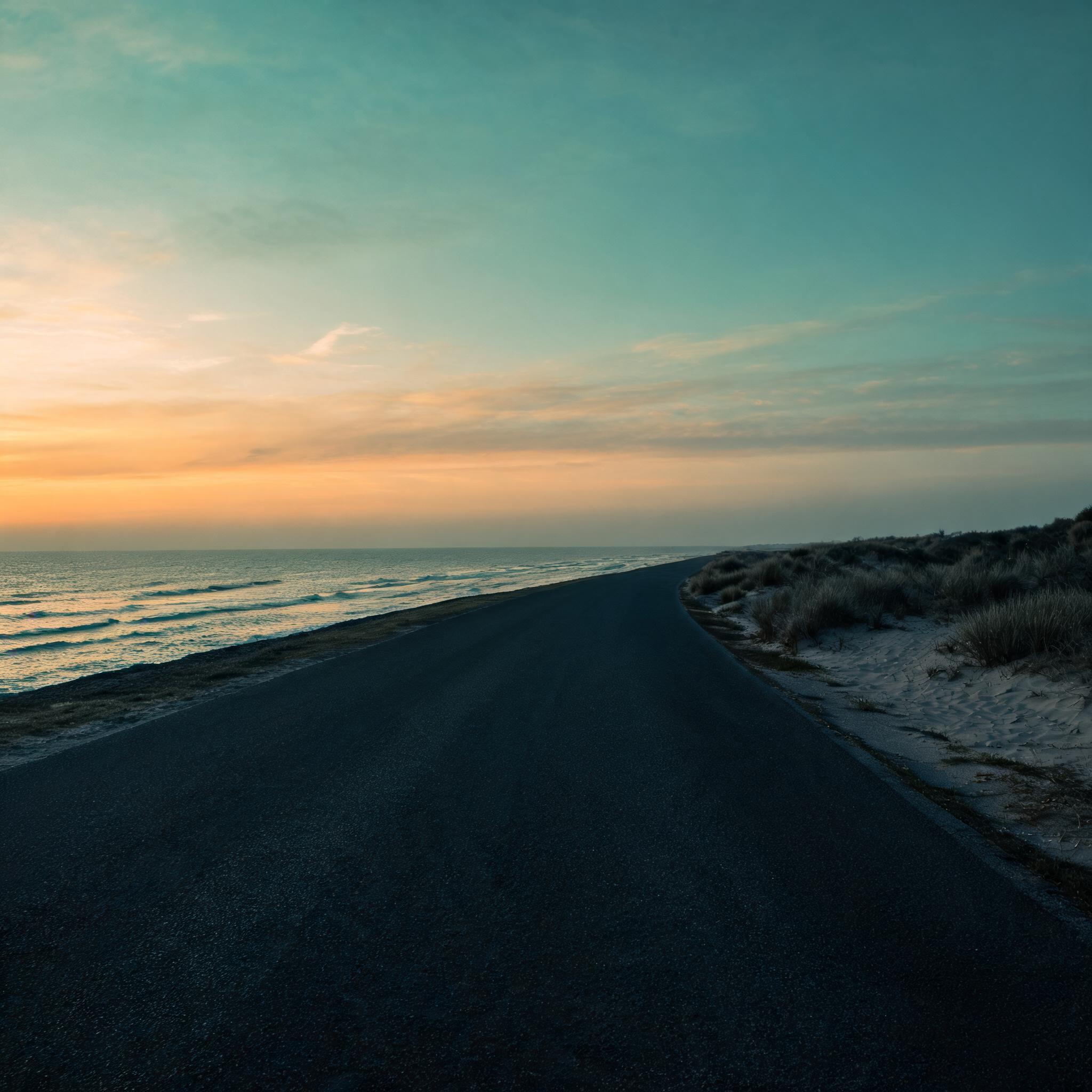
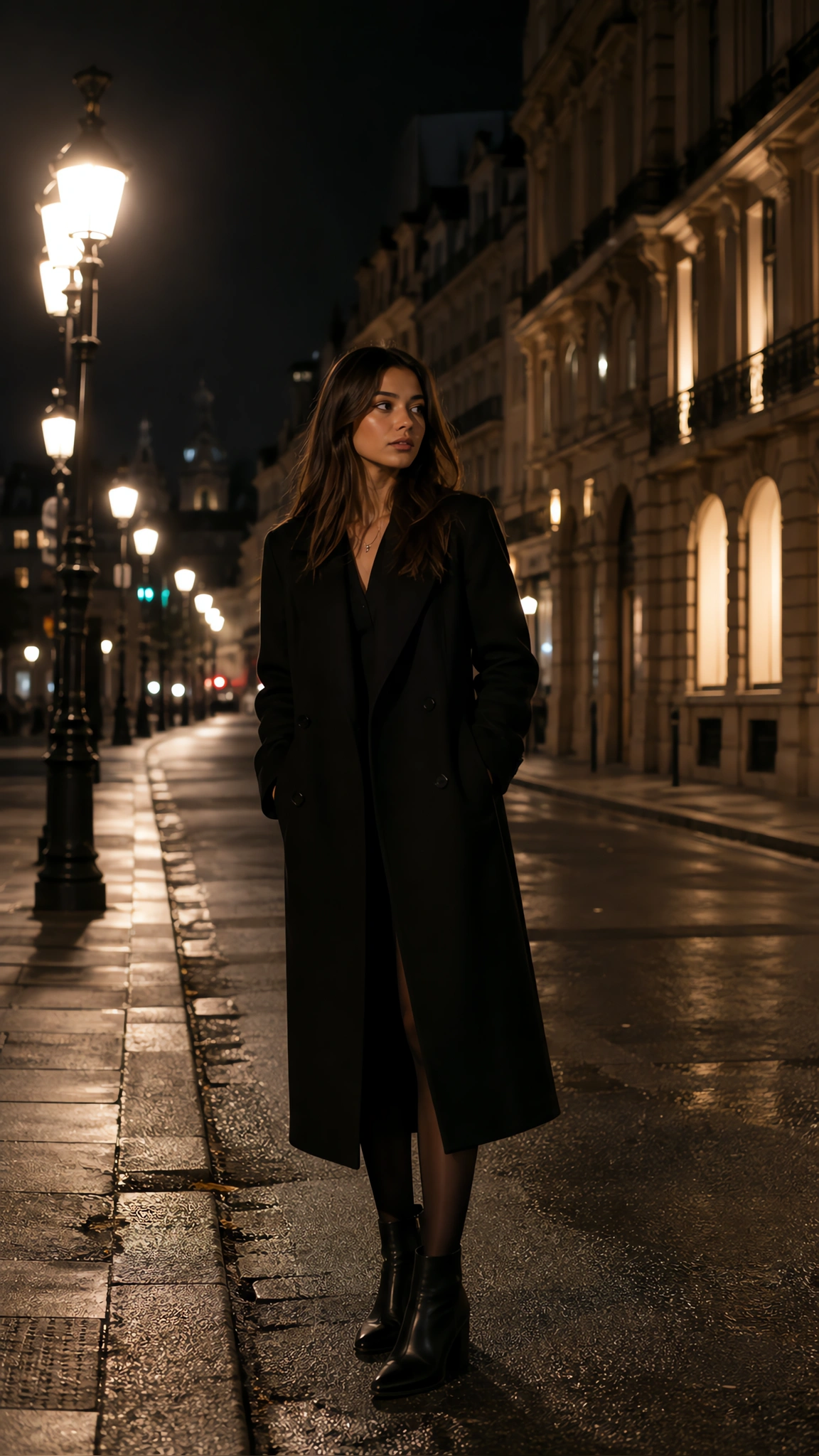
Images you can make from a prompt
Use this tool when you need a new picture and do not have a source photo to edit.
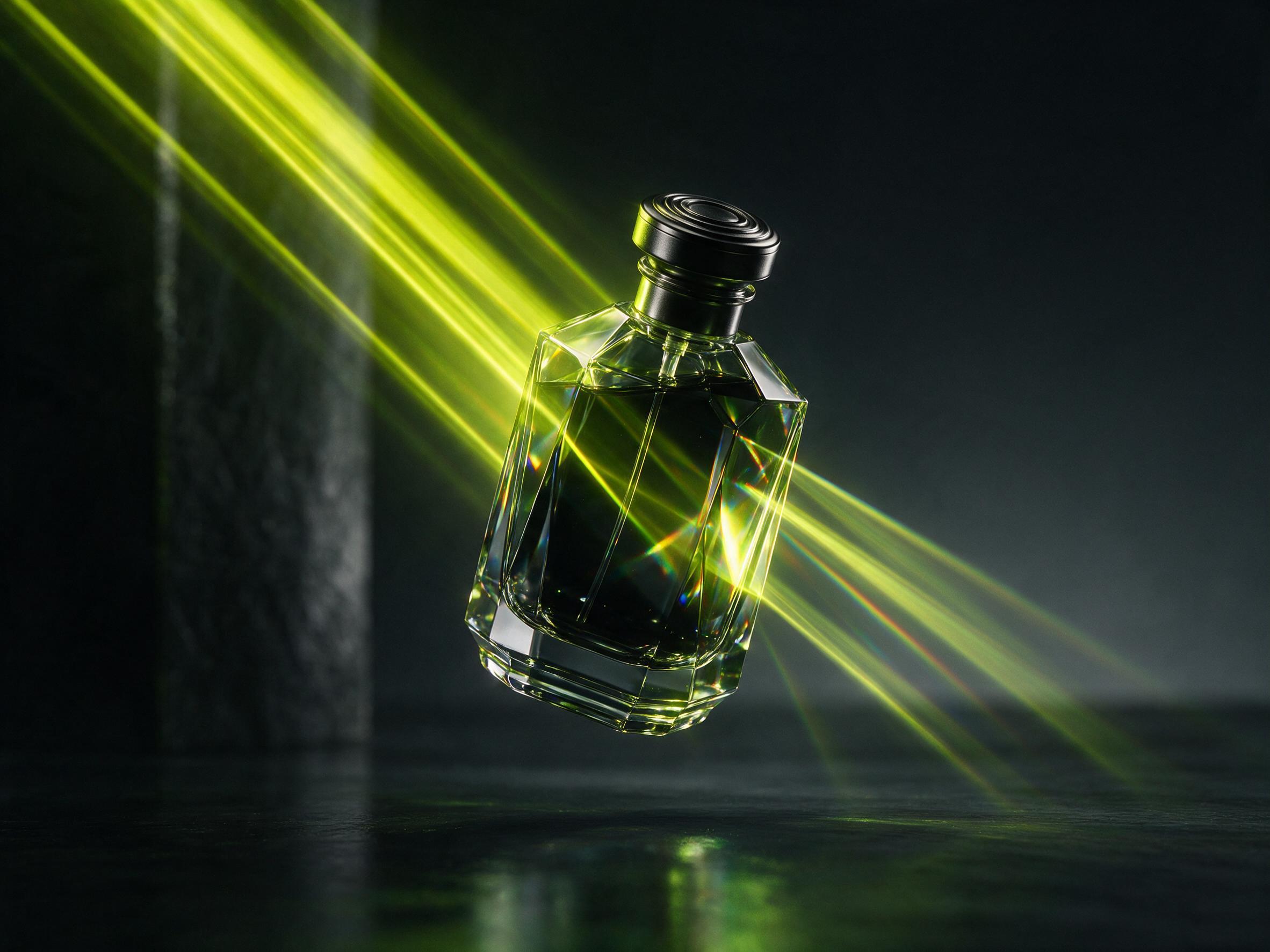
Product scenes
Describe a product, the surface under it, the background, and the light. Pick a wide or square shape for the page.
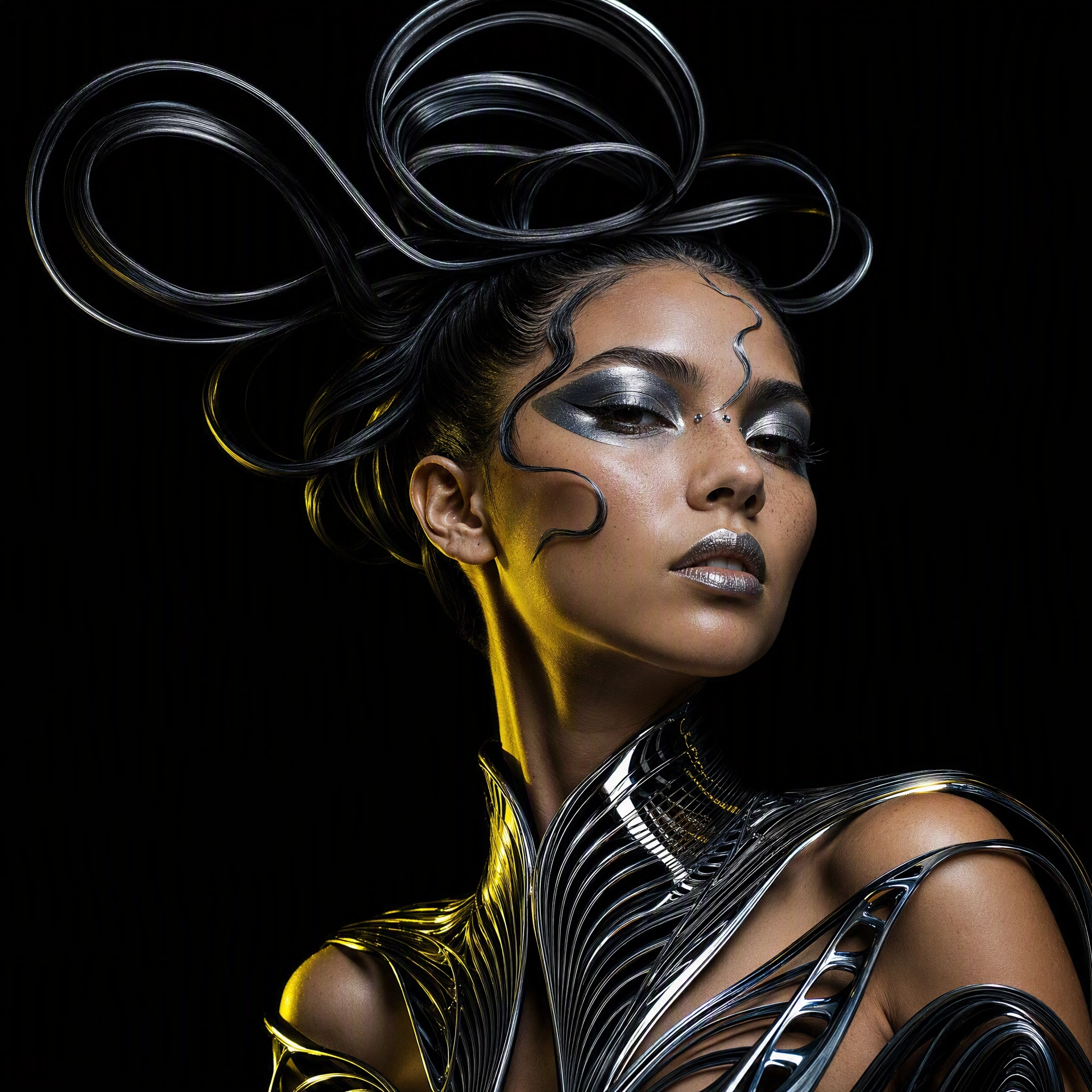
Social posts
Make square or tall images for different social feeds. Keep the idea the same and change the aspect ratio.
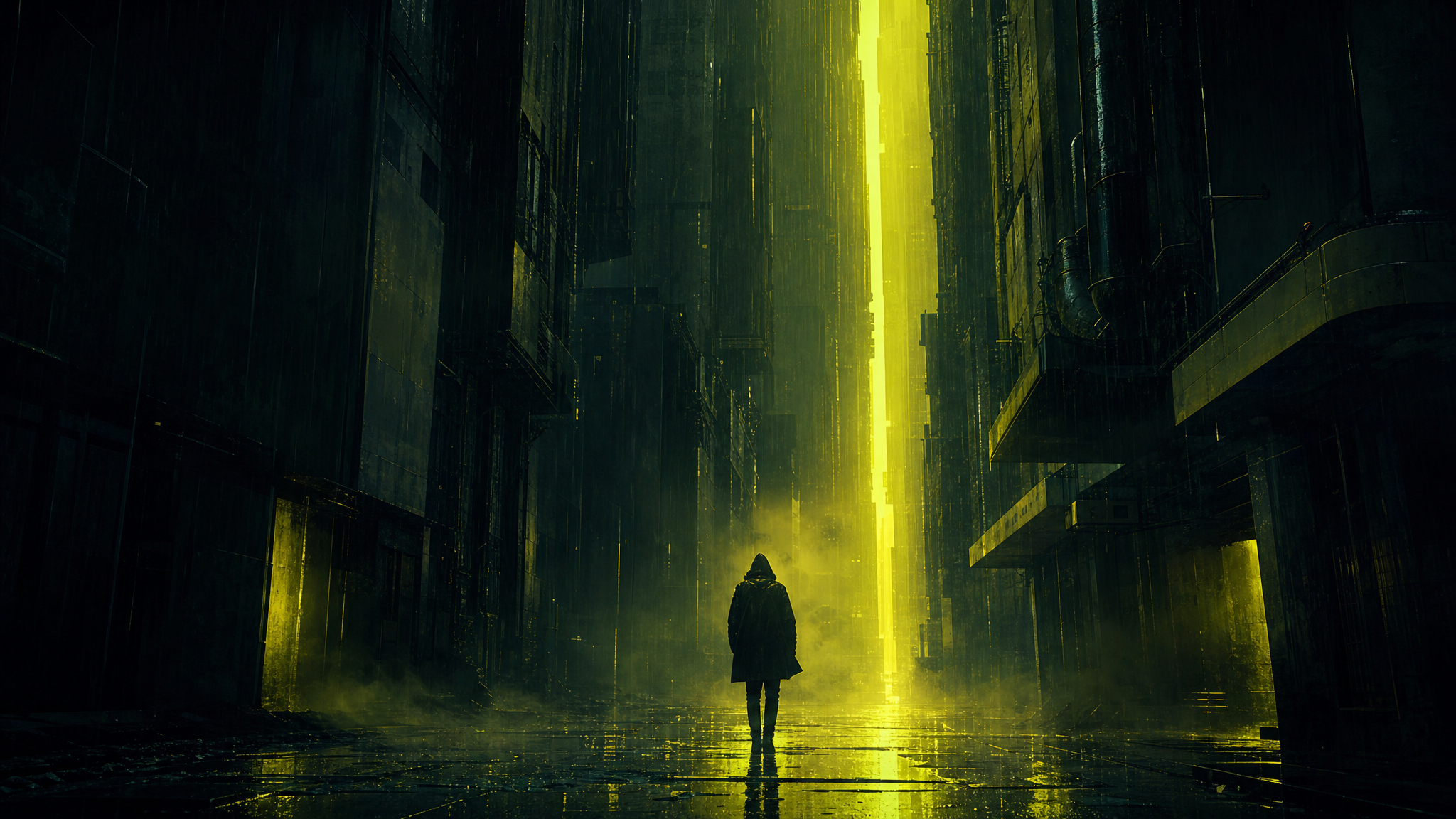
Ad ideas
Test a scene, color plan, or headline area before you plan a photo shoot or build the final ad.
Posters
Ask for a clear layout and include the exact words you want to see. Try again if the text needs a fix.
Blog images
Create a new image that matches an article topic. Use a wide shape for a page header or a square for a card.
Early design ideas
Try a room, character, package, or color idea before you spend time making a full design.
Pick the image shape before you generate
Set the aspect ratio and size first. Then use your prompt to guide the subject, setting, and look.
Use the shape control
Choose the aspect ratio in the form. Do not rely on prompt words like square or wide by themselves.
Put the main subject first
Start with the person, product, place, or object you want. Add the setting and style after the main subject is clear.
Write exact on-image text
If the image needs a label or headline, put the exact words in quotes. Check the result before you use it.
Change one part at a time
When an image is close, change one line of the prompt. A small edit makes it easier to see what helped.
Try Lite before Pro
Use Lite when you want a lower credit cost. Switch to Pro when you want to compare the two models.
Check the cost first
The page shows the needed credits before you generate. The number changes with Pro or Lite and with 1K or 2K.
Who can use this text-to-image page
This page is for people who can describe an image in words and want a downloadable file.
Marketers
Turn a campaign idea into an image for an ad, email, page, or social post.
Designers
Try image shapes, colors, and layouts before you build the final design.
Online shops
Make early product scene ideas from a text description when you do not have a photo yet.
Social teams
Use one prompt to try square, wide, and tall versions of the same idea.
Writers
Create an image for a story, guide, or article when a stock photo does not fit.
Small teams
Make a first image for a landing page, pitch, or new product idea.
Choose Seedream 5 Pro or Lite
Both models turn text into images with the same seven shapes, 1K or 2K sizes, and PNG or JPEG downloads.
Pro is ready when the page opens
Pro is the default on this page. You can keep it selected or switch to Lite before the run.
Lite uses fewer credits
Lite has a lower credit cost than Pro at the same size. Use it when cost matters more for a test.
Other models are optional
The model list may show more image models. They are extra choices. This page is built around Seedream 5.0.
Unsafe adult content is blocked
Prompts and results are checked for adult content. Use the tool only for work that follows the site rules.
Questions about making images from text
Find quick answers about prompts, Pro and Lite, image sizes, credits, photo editing, and video.
What is Seedream 5.0 text to image?
It turns a prompt into one new image. You can choose Pro or Lite, set the shape and size, and download PNG or JPEG.
What should I put in the prompt?
For Seedream 5.0, name the main subject, setting, light, colors, and image style. Add exact words if the image needs text.
Should I choose Pro or Lite?
This page starts with Pro. Lite uses fewer credits at the same 1K or 2K size, so you can compare both.
Which image shapes can I use?
Pro and Lite offer 1:1, 16:9, 9:16, 4:3, 3:4, 3:2, and 2:3. Pick the shape before you generate.
How many credits does one image use?
The Seedream 5.0 credit cost depends on Pro or Lite and on 1K or 2K. The page shows the needed credits before the run.
Can I edit a photo on this page?
No. This page starts from text only. Open the image editor if you want to upload and change a photo.
Can Seedream 5.0 make a video here?
No. This page makes one image per run. The video pages use other models and have their own controls.
What can I do if the image misses my prompt?
Make the main subject clearer, remove extra details, or change one part at a time. Then run it again.