
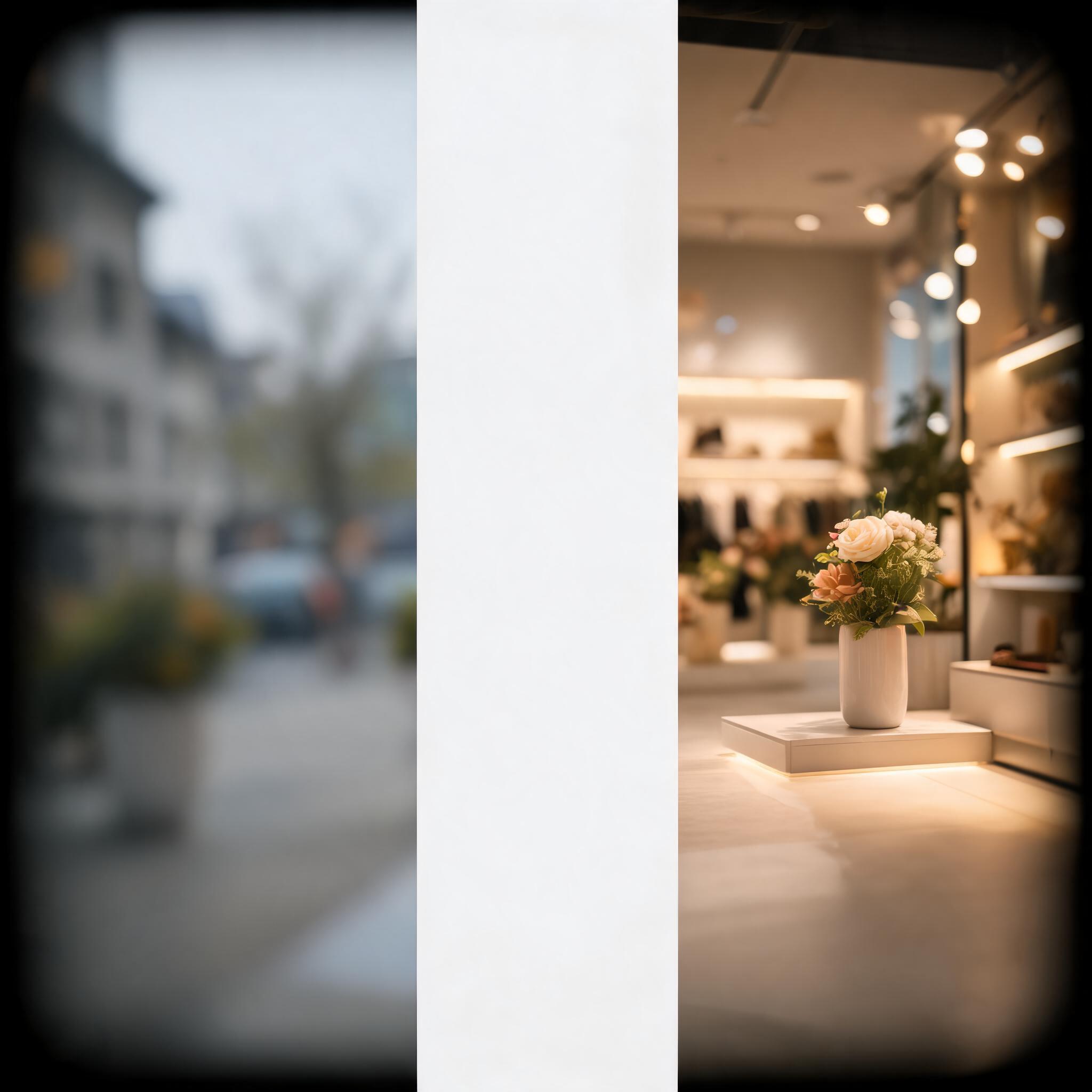
Edit Photos with the Seedream 5.0 Image Editor
Upload one to five photos, write what to change and what to keep, and get a new image. This page has no mask or brush.
© 2026 Seedream. All Rights Reserved. Disclaimer: Seedream is an independent AI platform and is not affiliated with, endorsed by, or sponsored by ByteDance.
Tell Seedream 5.0 what to change and keep
Write the change in plain words. Name the parts that should stay the same, then say what you want to add, remove, or replace.
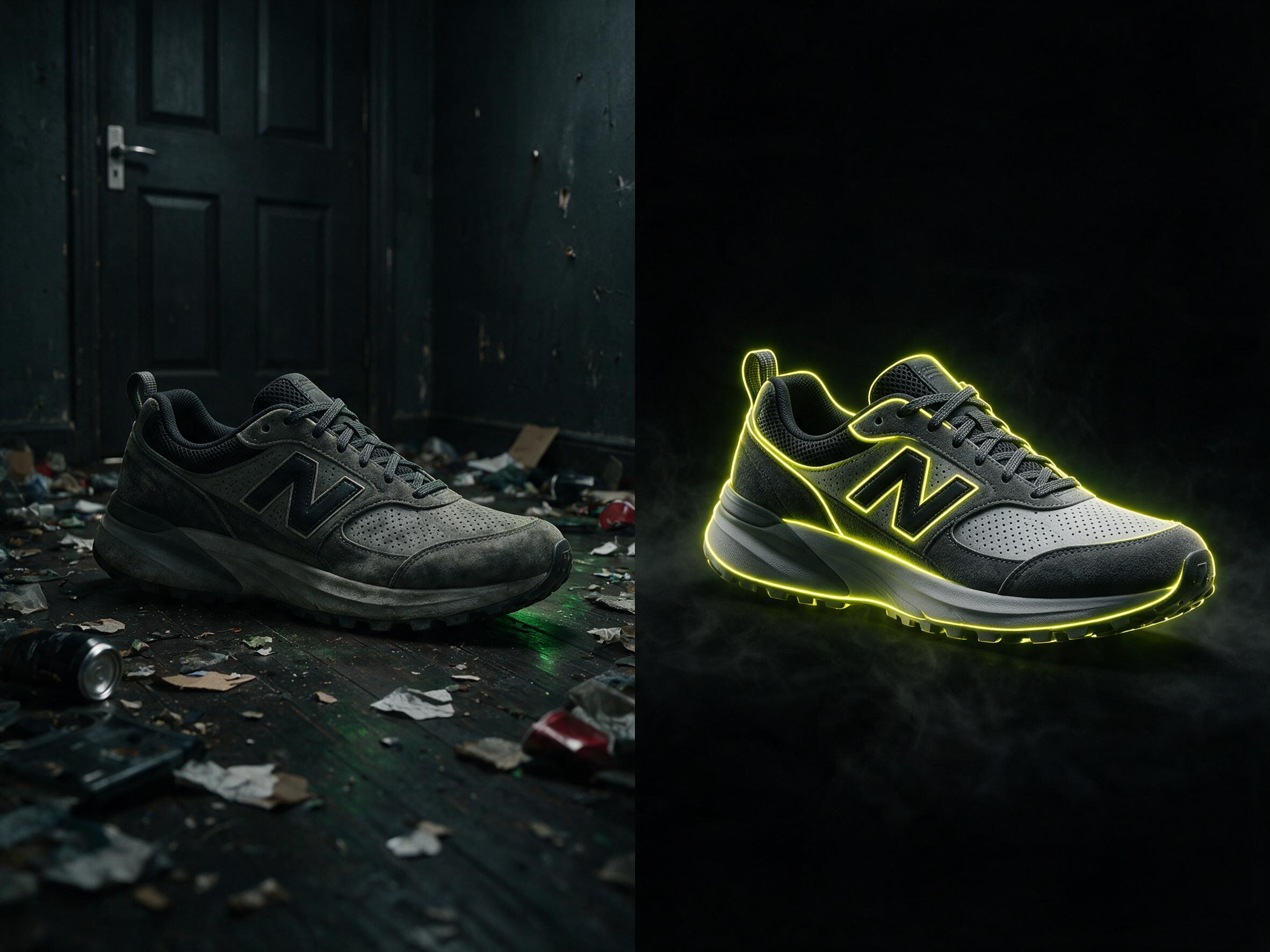
Edit with a prompt
Upload a photo and write the change you want. You do not need to draw over the photo or pick a tool from a long menu.
Add up to five photos
Seedream 5 Pro and Lite accept one to five input images. Each photo can give the model more details to use.
Say what should stay
Name the subject, color, label, pose, or camera view that should not change. Put this in the same prompt as your edit.
Start with Pro
The page opens with Seedream 5 Pro edit selected. You can switch to Seedream 5 Lite before you run the edit.
Choose 1K or 2K
Pro and Lite both offer 1K and 2K output. Set the size before you run the edit.
Download PNG or JPEG
Each run makes one new image. Choose PNG or JPEG, check the credit cost, and then start the edit.
How to edit a photo with a prompt
Add your photos, write one clear change, and download the new image. You can change the prompt and try again.
Upload your photos
Add the photo you want to change. With Seedream 5 Pro or Lite, you can add up to five input images.
Write the change
Say what to change and what to keep. For example, keep the bottle and label, but replace the background.
Choose settings and edit
Pick Pro or Lite, set 1K or 2K, and check the credits. Run the edit, then download PNG or JPEG.
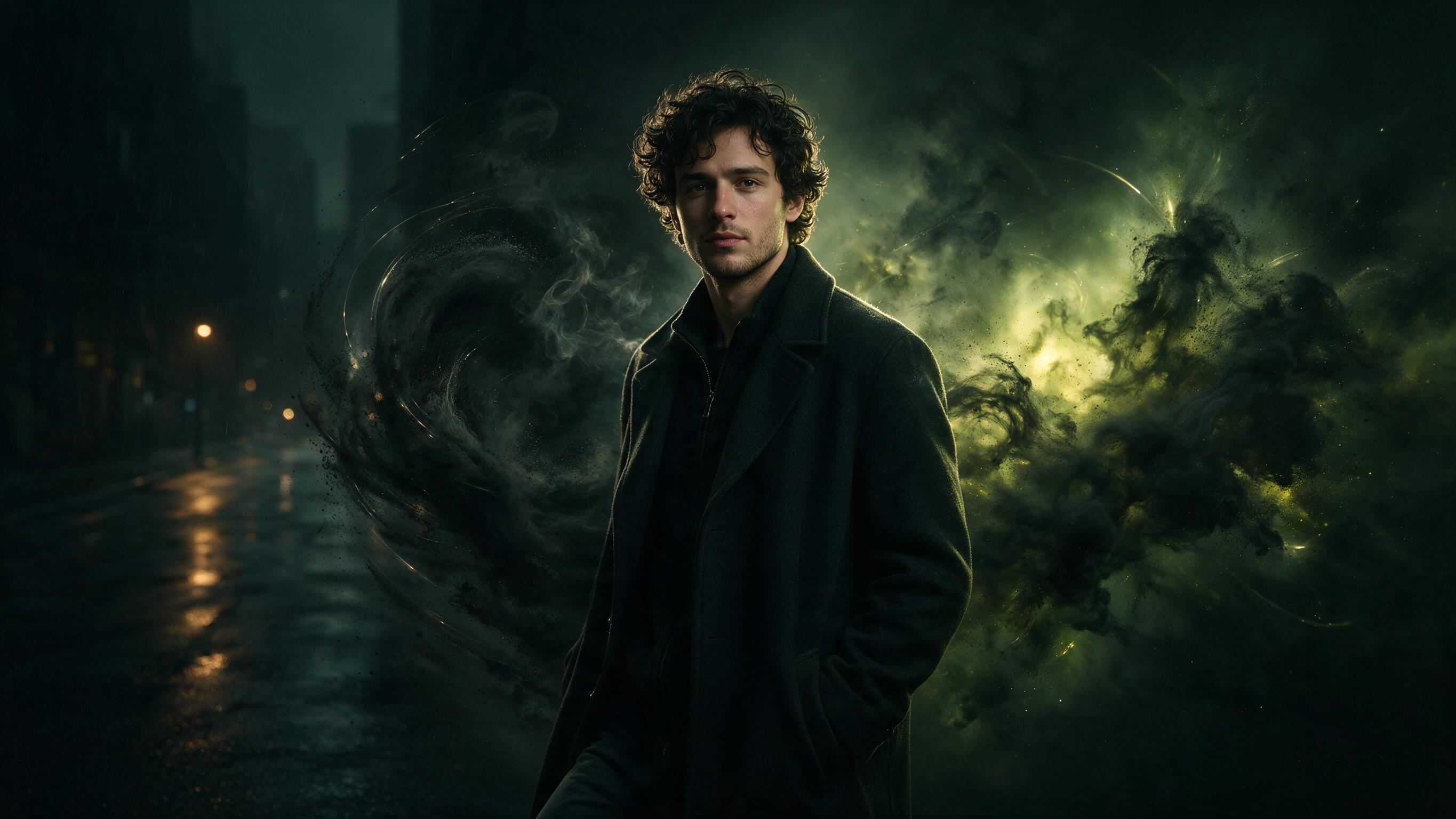
Photo edits you can ask for
Use the image editor when you already have a photo and want a new version made from a prompt.
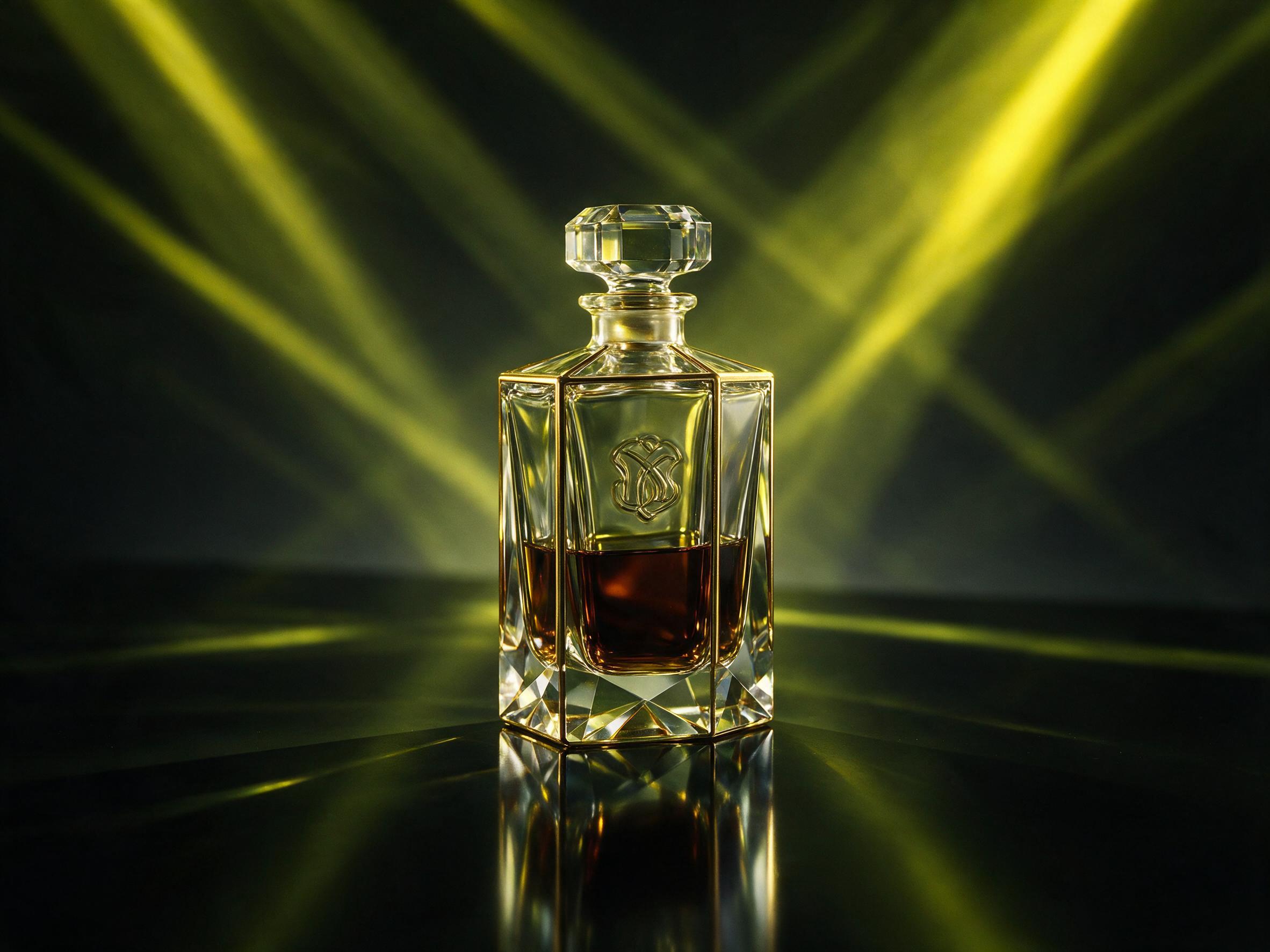
New product backgrounds
Keep the product and replace a busy background with a simple room, table, wall, or outdoor setting.
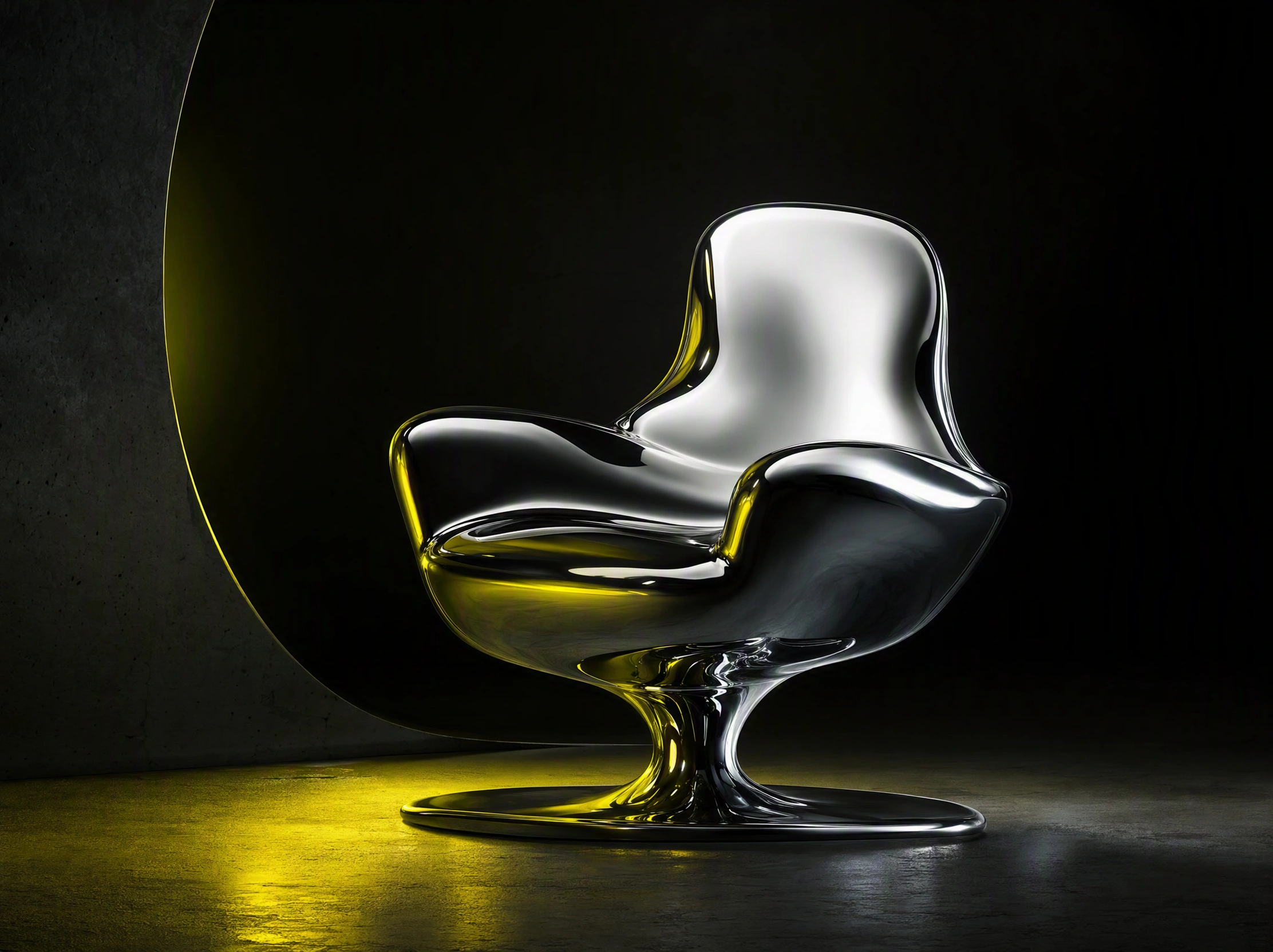
New colors or materials
Ask to change a shirt, chair, package, or wall to a new color or material while other parts stay the same.
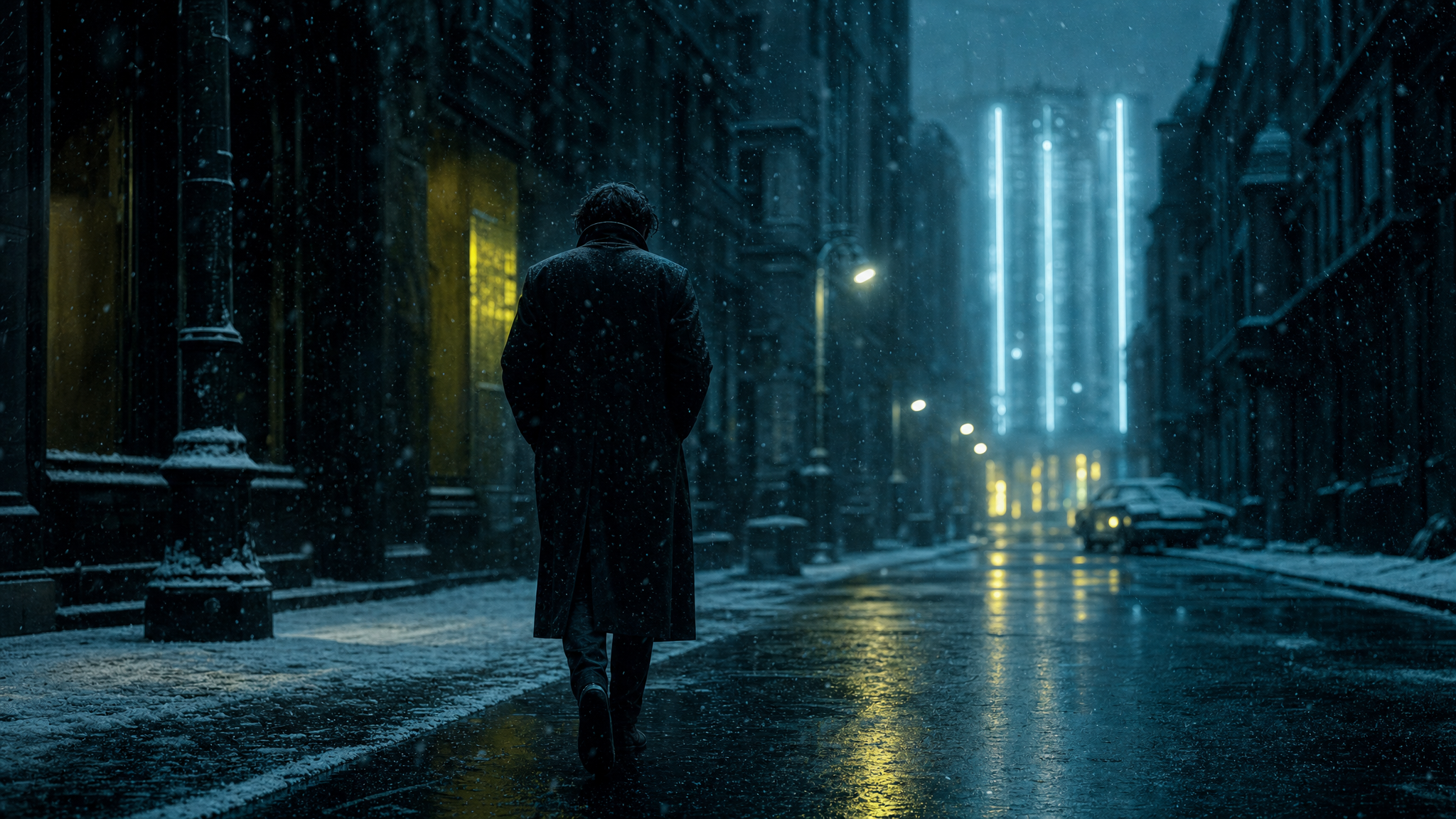
Ad photo changes
Give an ad photo a new season, light, or setting without starting from a blank prompt.
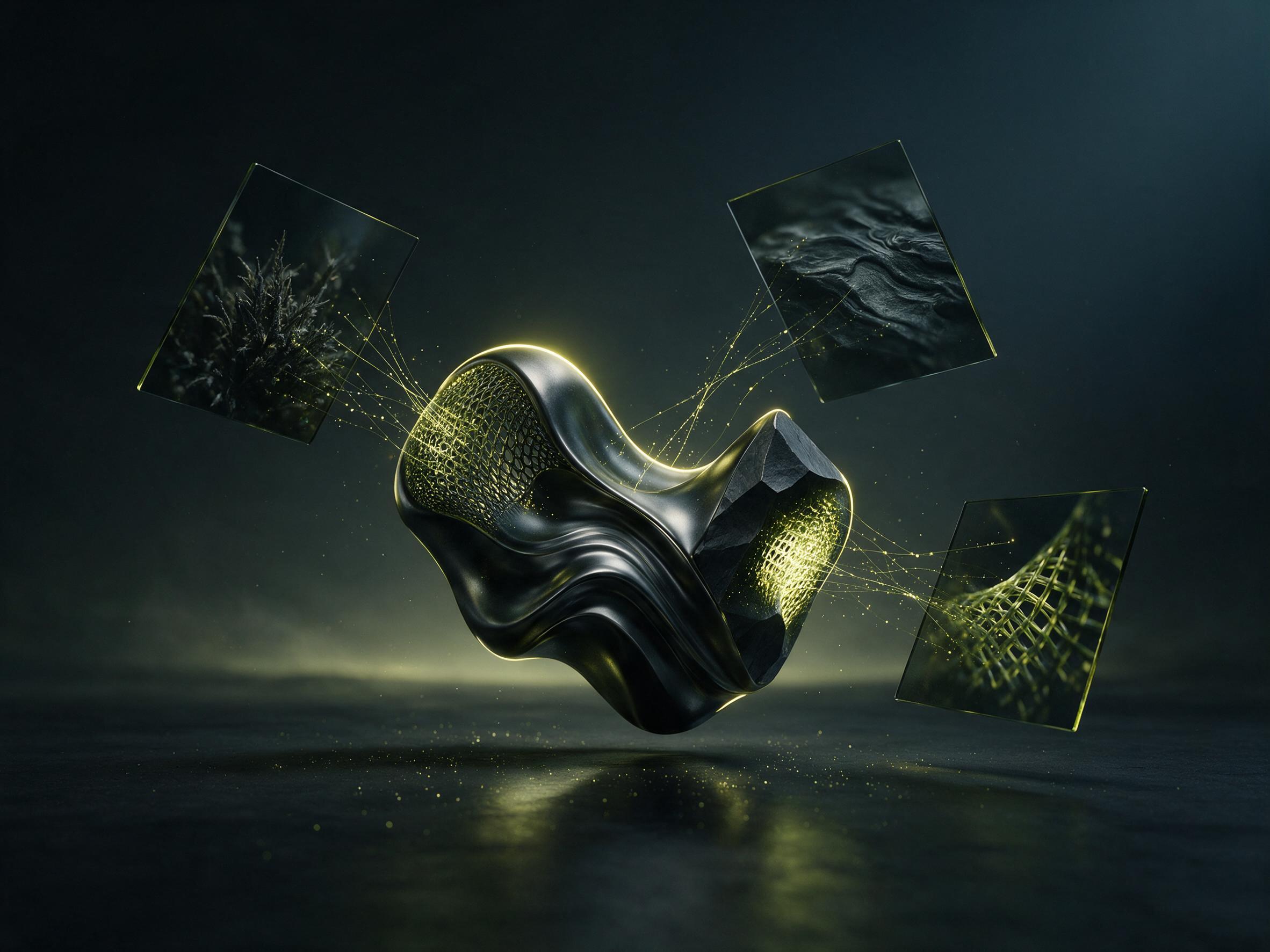
Several photo references
Upload more views of a product or person. Tell the model which details to use from each photo.
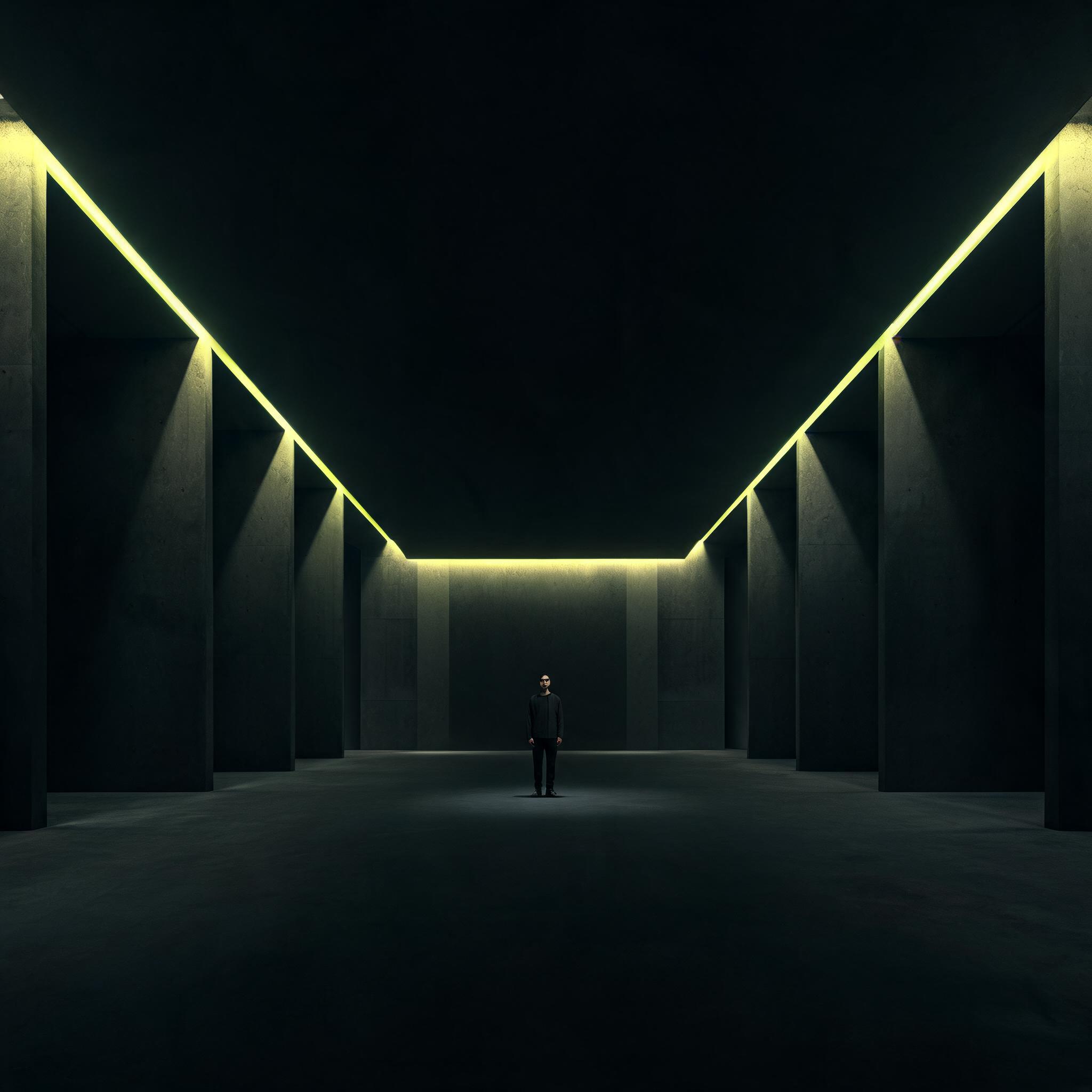
New image shapes
Choose another aspect ratio, then ask for more background around the subject to fit the new shape.
Simple object changes
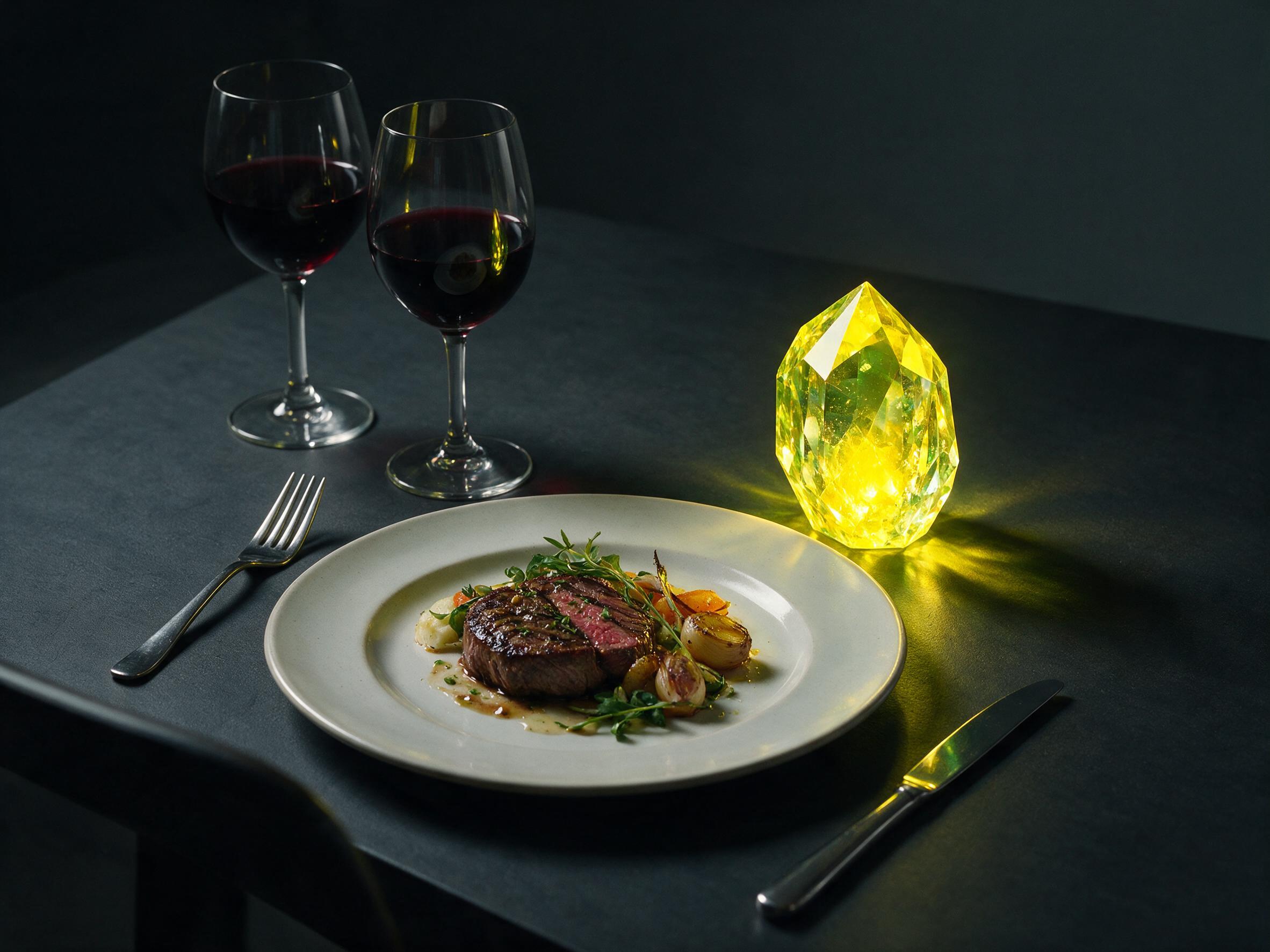
Ask to add, remove, or replace an item. Use a clear prompt and check that the rest of the photo stayed close.
Fix an edit that misses your prompt
A clear change is easier to follow. Name what should stay, and split a hard edit into smaller steps.
Use one main change
Start with one job, such as changing the background. Add another change in a new run after the first one looks right.
Name what should stay
If the subject changes too much, add a short keep list. Name the face, product shape, label, pose, or camera view.
Use clear photos
Upload the clearest photo you have. A small or blurry photo gives the model less detail to use.
Check the five-photo limit
Seedream 5 accepts up to five input images. Other models on the page may allow a different number.
Do not look for a brush
This page has no mask, brush, lasso, or layer tool. Put the place and the change into your prompt.
Try a simpler change
If a small item will not change, shorten the prompt and name the item by its color, place, and shape.
Who can use this image editor
This page is for people who already have photos and want to change them with a prompt.
Online shops
Make a new product photo setting from images you already have.
Marketers
Change the season, light, color, or setting in an ad photo.
Designers
Use up to five photos to test a new look before making a final design by hand.
Social teams
Turn one photo into a new version for another post, season, or image shape.
Catalog teams
Keep the main product in view while trying a new color or background.
Small teams
Update a page or product photo with a short edit prompt and a new download.
Use photos as references, not a mask
This page uses your photos and prompt to make a new image. It does not have a brush or area picker.
Your photos guide the edit
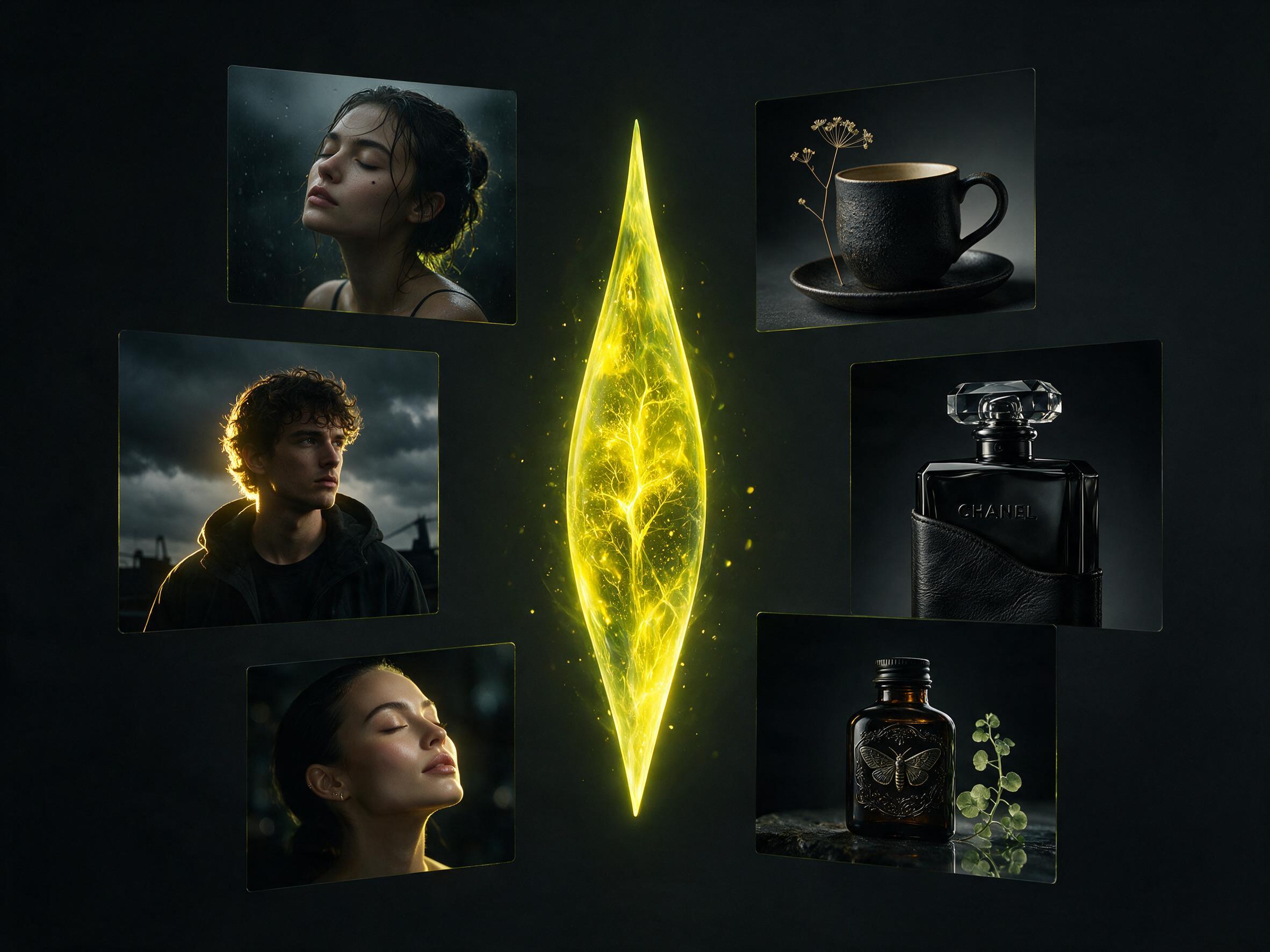
Add one to five photos. Tell the model which subject or details it should use.
The prompt names the change
Write what to add, remove, or replace. Also write what should stay the same in the new image.
The page shows its limits
There is no mask, brush, lasso, layer tool, or control that adds space to only one side.
Unsafe adult content is blocked
Prompts and results are checked for adult content. Use the editor only for work that follows the site rules.
Questions about editing photos with a prompt
Find quick answers about uploads, prompts, Pro and Lite, image sizes, credits, and tools this page does not have.
What is the Seedream 5.0 image editor?
It changes photos you upload by following a prompt. Add one to five photos, say what to change and keep, then download one new image.
Do I need a mask or brush?
No. On this Seedream 5.0 page, you write the place and the change in your prompt. There is no mask, brush, lasso, or layer tool.
How many photos can I upload?
Seedream 5 Pro and Lite accept up to five input images. Other models can have different limits, and the form follows your model choice.
What should I write in the edit prompt?
For Seedream 5.0, name the change and what should stay. Example: keep the bottle and label, but put it on a white table.
How many credits does an edit use?
The Seedream 5.0 credit cost depends on Pro or Lite and on 1K or 2K. The page shows the needed credits before the run.
Can I add space to one side of the photo?
This page has no side or edge tool. You can ask for more background, but you cannot draw the area to add.
Can I start without a photo?
No. This page needs at least one uploaded photo. Use the text-to-image page when you only have a prompt.
What can I do if the edit changes too much?
Tell Seedream 5.0 what to keep, shorten the prompt, and make one change at a time. Then try again with the same photos.