
Image to Video — Animate a Photo
Upload a still and describe the motion. This image to video page turns that photo into a clip.
© 2026 Seedream. All Rights Reserved. Disclaimer: Seedream is an independent AI platform and is not affiliated with, endorsed by, or sponsored by ByteDance.
Start image to video from a photo
The uploaded still is the start. The prompt says how it should move.
Photo first
Upload PNG, JPG, or WEBP. This job needs that still. A text-only prompt is the other page.
Motion prompt
Write the action, camera move, and pace. This is how you animate a photo without a reshoot.
Seedance 2.0 default
The form defaults to Seedance 2.0. Wan, Kling, and Veo stay in the picker as extras.
Optional last frame
Some models accept an end image. Use it when you need the clip to finish on a chosen still.
Length and size
Seedance 2.0 supports 4-15 seconds at 480p, 720p, or 1080p. Other models show their own range.
Credits before you run
Required credits are shown before generate. The charge depends on the model, length, and size.
How a photo becomes a clip
Three steps to turn photos into videos.
Upload the still
Choose a clear photo. Product shots, portraits, and posters all work as the first frame.
Describe how the photo should move
Say what the subject does and how the camera moves. Keep the look of the still in the prompt when identity matters.
Generate the clip
Pick a model, set length and size, then generate when the credit cost looks right.
When to use photo to video
Motion from a still you already have.

Product clips
Turn a listing photo into a short moving shot for ads and shops.
Social stills
Animate a photo for Reels or Shorts without filming a new take.
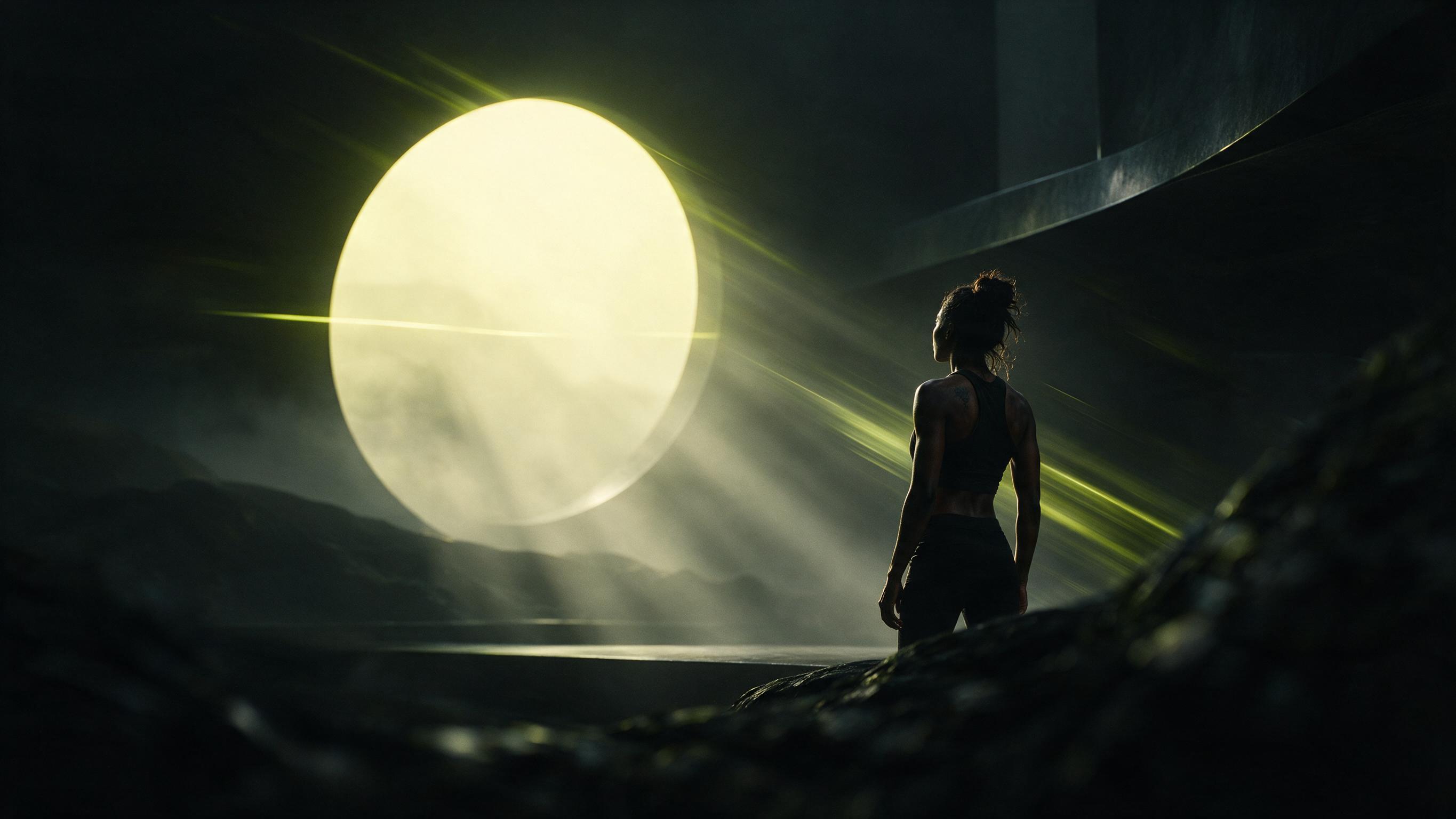
Poster motion
Add camera move to campaign art that started as a still.
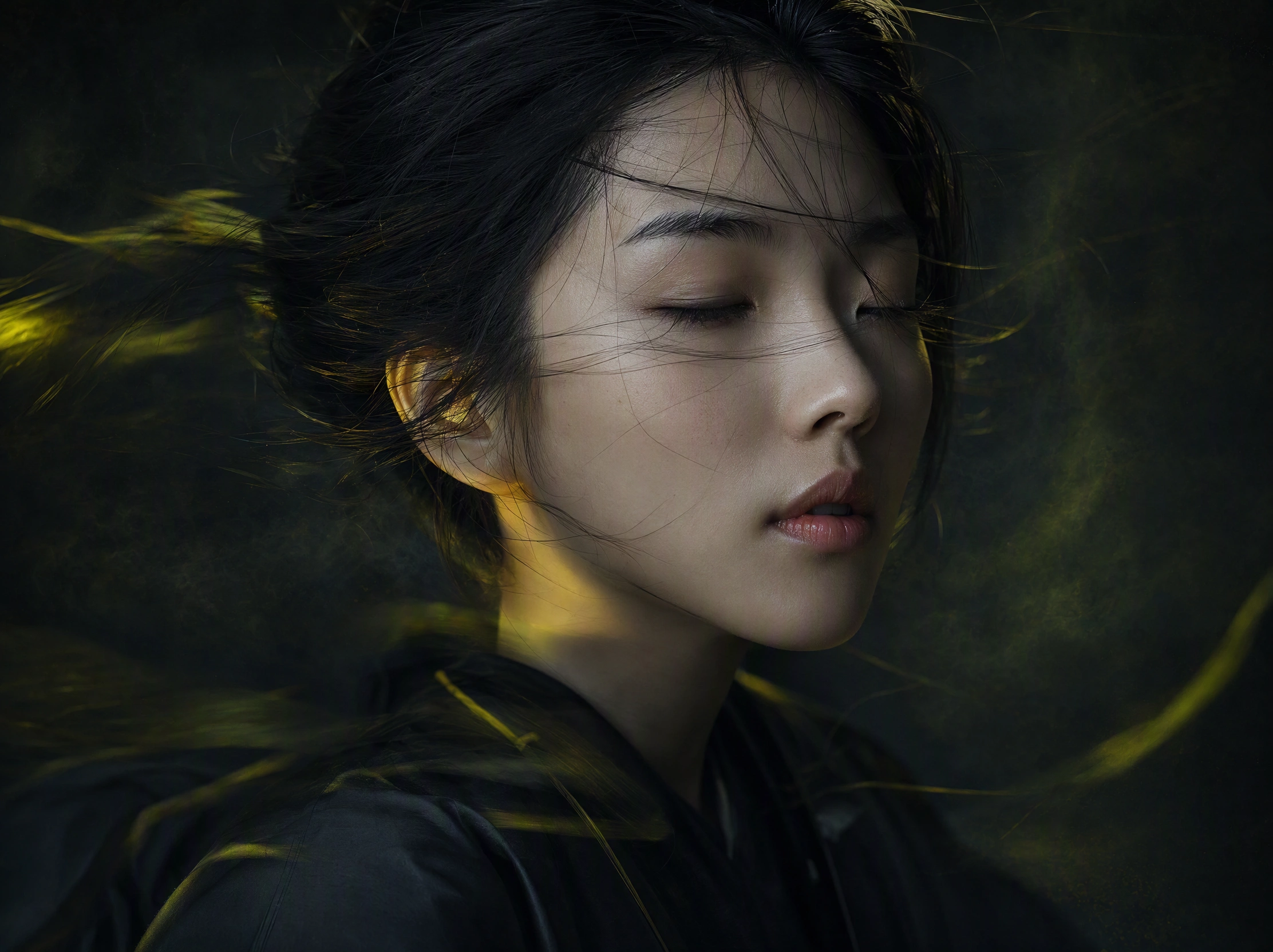
Portrait motion
Give a headshot a blink, turn, or slow push-in.

Story art
Move an illustration when you need a beat, not a new drawing.

Pitch decks
Drop a moving version of a key still into a presentation.
Keep the subject from the image
The still is the source. The prompt should not invent a new person.
Write motion, not a new scene
Say how this photo should move. Do not describe a different location unless you want the model to leave the still.
Use a clean source
A sharp, well-lit image is easier to animate. Heavy crop or blur is harder to hold.
Name the camera
Add zoom, pan, or locked-off if that is the job. Leave it out when only the subject should move.
Match length to the action
A small gesture needs a short clip. A walk or camera orbit needs more of the 4-15 seconds range.
Try another model on the same still
This picker lets you rerun one photo on Seedance, Wan, Kling, or Veo.
Do not treat this as Seedream 5.0
Seedream 5.0 edits stills. This URL uses the selected video model.
Who this page is for
People who already have a still and need photo to video.

Shop teams
Animate a catalog photo instead of booking another shoot.
Social creators
Turn a still into a short clip for a feed.
Artists
Give a finished illustration a short motion pass.
Marketers
Make a moving version of an approved still.
Photographers
Add a subtle camera move to a portrait or landscape.
Agencies
Test motion on client stills before a full video job.
Describe how the photo should move
This page is a motion job on a still, not a new scene from text.
You already have the frame
If the look is in the photo, start here. If you have only words, use text to video.
See the cost first
Credits are shown before generate. Size and length change the charge.
Keep the still honest
This page does not replace Seedream 5.0 image edit. Change the photo there first if you need a new still.
Stay off the other video jobs
Use reference to video to keep a look across a new scene. Use motion control to copy a driving video.
Photo-to-clip questions
How this photo to video page works on Seedream 5.0.
What is image to video on this page?
Here you upload a photo, describe the motion, and a video model returns a clip. The page defaults to Seedance 2.0. Seedream 5.0 is the site brand, not the video model.
Does Seedream 5.0 animate the photo?
No. Seedream 5.0 makes and edits stills. This URL uses Seedance 2.0, Wan, Kling, or Veo.
What file can I upload?
Upload a still in PNG, JPG, or WEBP. You also need a motion prompt. That is how you animate a photo here.
How long can the clip be?
Seedance 2.0 supports 4-15 seconds. Other models show their own range before you generate.
Will the person in the photo stay the same?
The model starts from your still. Complex motion can still drift. Keep the prompt on motion, not on a new identity.
How many credits does a run cost?
Required credits are shown before generate on Seedream 5.0. The charge depends on the model, length, and size.
How is this different from text to video?
Text to video starts from writing only. Image to video needs a photo. Use the other page when you have no still.
Can I pick 720p or 1080p?
Yes, when the selected model allows it. Seedance 2.0 offers 480p, 720p, and 1080p. The form lists only valid sizes.